How to Remove Vocals From a Song Without Losing the Groove
Learn how to remove vocals from a song with AI, prepare cleaner source audio, export instrumental tracks, and check karaoke or remix stems before publishing.
What this guide helps with
Create cleaner instrumental and vocal outputs
Removing vocals works best when the goal is clear before upload. A karaoke backing track, an acapella reference, and a remix stem all need different quality checks, so this guide separates preparation, extraction, review, and export decisions instead of treating vocal removal as one button.
Karaoke tracks
Turn a song into a backing track that keeps rhythm, bass, and energy intact.
Acapella ideas
Extract vocals for reference, practice, timing checks, or cover planning.
Remix prep
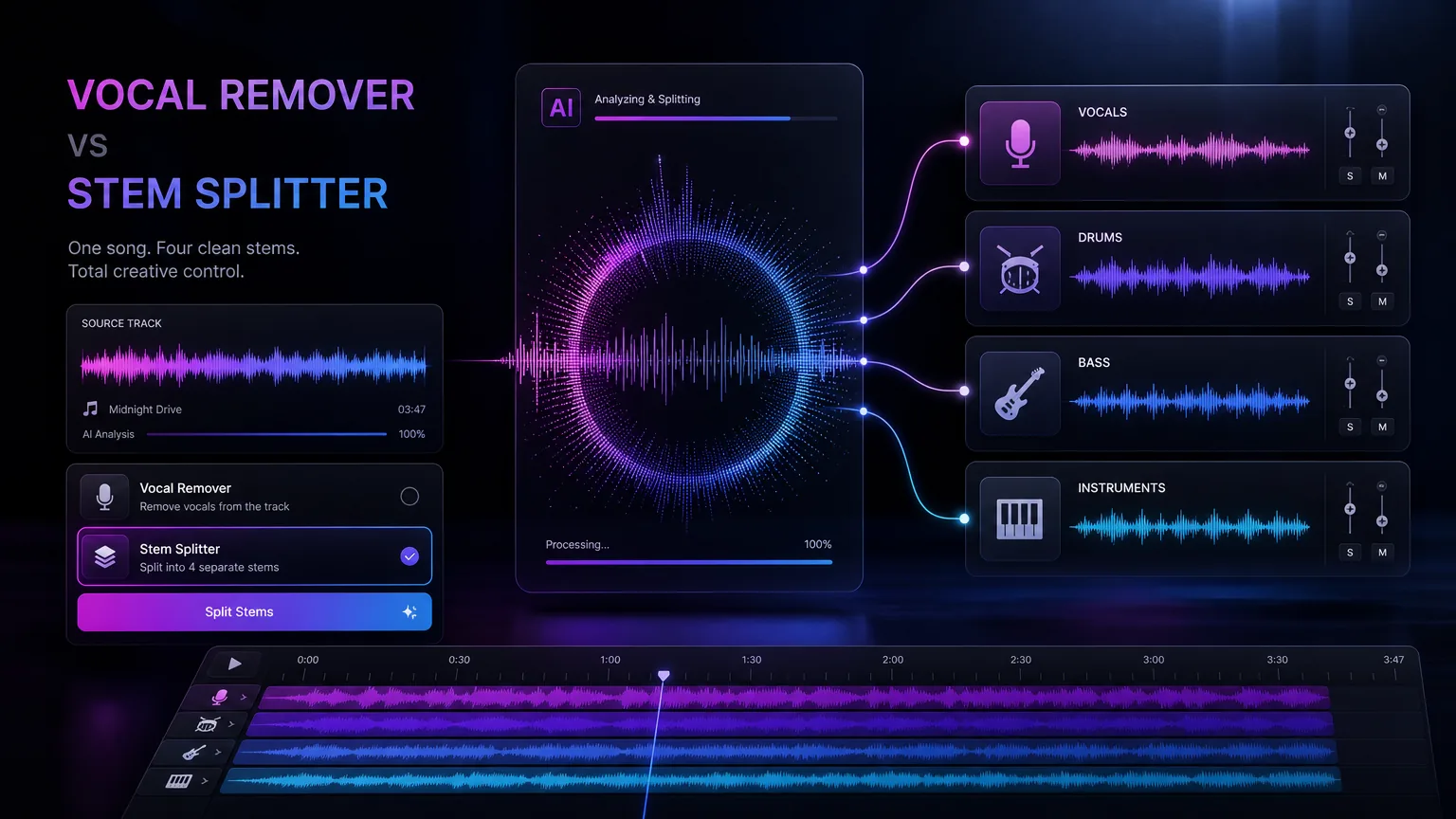
Decide when a two-stem vocal remover is enough and when a deeper stem splitter is better.
Practice files
Make rehearsal tracks for singers, instrumentalists, and creators who need quick loops.
A repeatable workflow before you open the tool
Start with the output you actually need
If you only need a karaoke or instrumental track, a focused AI vocal remover is the simplest route. If you need drums, bass, keys, or individual instruments, plan for a stem splitter instead. Choosing by output prevents extra processing and keeps the workflow easier to review.
Write down whether the file is for private practice, social video, remix sketch, or client delivery. That decision sets the quality bar before you upload anything.
Use the cleanest source file you legally have
High-bitrate MP3, WAV, or FLAC sources usually separate better than compressed screen recordings. Avoid clipped audio, crowd noise, heavy room reverb, and files that already sound distorted, because the model has less clean information to separate.
Trim long silence and upload one complete track rather than a noisy recording from another speaker. A cleaner source gives the instrumental track fewer ghost vocals and fewer watery artifacts.
Run the vocal removal pass
Upload the song, let the AI separate vocals and instrumental, then keep both outputs. Even if you only need the instrumental, the vocal stem helps you hear where the separation succeeded or failed.
Do not regenerate immediately after the first result. First listen to verse, chorus, quiet bridge, and fade-out sections because artifacts often appear in different places.
Check artifacts before using the file
Listen for ghost vocals, smeared cymbals, hollow bass, pumping ambience, and reverb tails that move with the wrong stem. A file can be good enough for karaoke but still not clean enough for a public remix.
Compare the instrumental with the original track at the same volume. If the backing loses too much punch, try a cleaner source or use stem splitting for more control.
Export and name stems for the next workflow
Name files with the song, date, and stem type so you can find them later. Keep the original upload next to the vocal and instrumental exports for comparison.
Before publishing or monetizing anything based on the separated material, confirm you have the necessary rights to the original recording and any derivative use.
Better results
Tips that improve the first draft
Use headphones for the first artifact pass.
Check choruses and quiet sections separately.
Keep vocals and instrumental exports together.
Use stem splitting when drums or bass need separate editing.
Do not assume vocal removal grants rights to the original song.
Common use cases
Where this workflow fits
Karaoke and rehearsal
Create a backing track for singers who need the original arrangement without lead vocals.
Cover planning
Use the vocal stem to study phrasing before recording or generating a new cover-style draft.
Remix sketches
Build a fast idea from vocal and instrumental outputs before committing to deeper stem editing.
Mistakes to avoid
What usually weakens the output
Uploading low-quality recordings and expecting studio-clean stems.
Using a vocal remover when the project needs separate drums, bass, or instruments.
Publishing separated audio without checking source rights.
Judging the result from only the first ten seconds.
Create with Make A Song AI
Move from planning to a clean vocal removal pass
When the source file and quality bar are clear, open the AI vocal remover and create vocal plus instrumental stems for your next edit.
Frequently asked questions
Can AI remove vocals from any song?
AI can separate many studio recordings, but quality depends on the mix, source bitrate, reverb, and how much the vocal overlaps with instruments.
Will the instrumental be completely clean?
Not always. Some ghost vocals or artifacts can remain, especially in dense choruses, live recordings, or heavily compressed files.
Is vocal removal the same as stem splitting?
No. Vocal removal usually creates vocals and instrumental. Stem splitting gives more layers such as drums, bass, and other instruments.
Can I use separated stems commercially?
Only if you have the rights needed for the original recording and the intended derivative use. The separation process does not create new ownership rights.